Why WooCommerce search returns “No products found” (and how to fix it)
If your store shows “No products were found matching your selection” for searches you know you can fulfil, the catalog is usually fine — the search engine isn't. WooCommerce's built-in search only matches exact keywords in your product text. Here's how to confirm that's the cause, and how to fix it for good.
The short answer. WooCommerce shows “No products were found matching your selection” because its built-in search only matches the exact words a shopper types against your product titles and descriptions. When the wording doesn't line up — a synonym, a description instead of a name, a plural, or a typo — the query returns nothing, even when you stock exactly what they want. It's a wording problem, not a stock problem, and the durable fix is search that matches by meaning rather than by keyword.
Here's what I see on most stores that report this: the catalog is fine. The product the shopper wanted is sitting right there, published and in stock. The search box just couldn't connect the two. That's frustrating because it looks like a content problem (“add more products!”) when it's actually a matching problem. Let's confirm that's what's happening on your store, then fix it — from the five-minute patches to the one that makes the problem stop coming back.
Why does WooCommerce say “No products were found”?
WooCommerce inherits WordPress's search, which is a database LIKE query against post titles and content. In plain terms, it looks for your shopper's literal words inside your product text. If those exact characters aren't there, there's no match. It doesn't know that “trainers” and “sneakers” are the same thing, that “Nike” implies athletic gear, or that “something to keep my coffee hot” describes a travel mug.
So the empty page shows up for predictable reasons:
- Synonyms. The shopper's word and your word mean the same thing but aren't spelled the same.
- Descriptive queries. They describe the use case instead of naming the product.
- Plurals and word forms. “Boot” vs “boots,” “running” vs “run.”
- Typos. One wrong character and a literal match fails.
- Brand names you don't carry. They search a brand expecting the category.
This isn't a rare edge case. Baymard Institute's usability research found that 61% of e-commerce sites can't handle the way people actually search when shoppers describe what they want rather than typing the exact product name a merchandiser chose (Baymard, “The Current State of E-Commerce Search”). And the people hitting your search box are buyers, not browsers — losing them to an empty page is expensive.
First, rule out the boring causes
Before blaming the search engine, spend two minutes ruling out the simple stuff. If any of these is the culprit, you don't need a plugin, you need a quick fix:
- The product is a draft or pending, not published. Drafts never show in search.
- It's out of stock and you've set WooCommerce to hide out-of-stock items (WooCommerce → Settings → Products → Inventory).
- The product's visibility is set to “Hidden” or “Shop only” in the Catalog visibility box on the product edit screen.
- A caching or CDN layer is serving a stale page. Clear it and retry in a private window.
If the product is published, visible, in stock, and you still get nothing for a reasonable search, it's a matching problem. That's the rest of this guide.
How to diagnose a zero-result search, step by step
Work through these in order. The goal is to prove it's wording, not catalog, and to find the exact phrases you're losing.
- Reproduce the failing search. Use the real query a shopper would type, in a logged-out / private window. If you see the page below, you've confirmed the symptom.
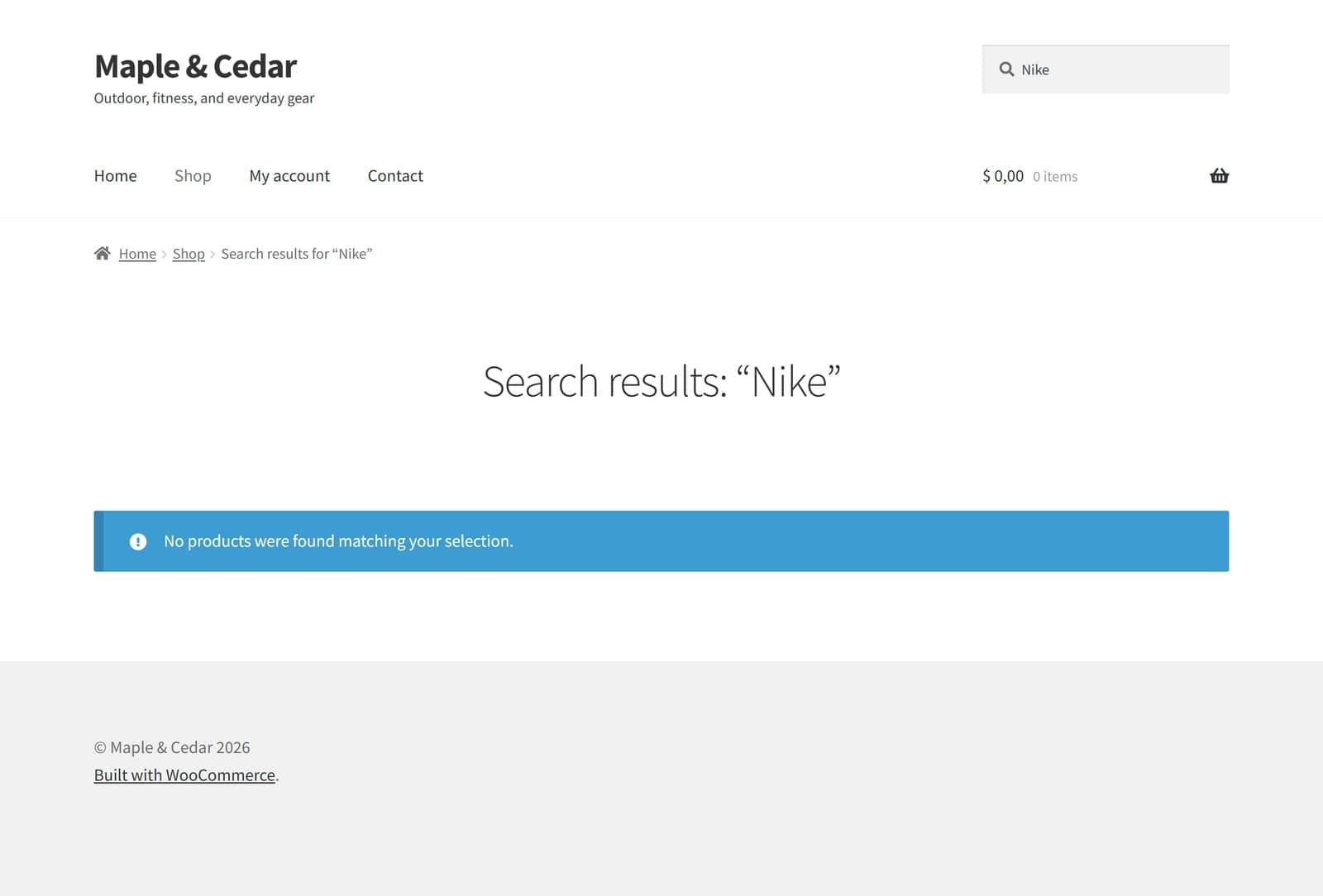
The symptom: a search for “Nike” on a store that sells athletic gear but carries no Nike-branded items. Default WooCommerce gives the dead end.
And it isn't only brand names. Descriptive searches fail the same way. On the same store, a shopper who types “keep my drink cold all day”gets nothing from the default search — even though the shop sells insulated bottles and mugs that are exactly the answer. Here the products were in the catalog the whole time; only the wording stopped them from showing up.
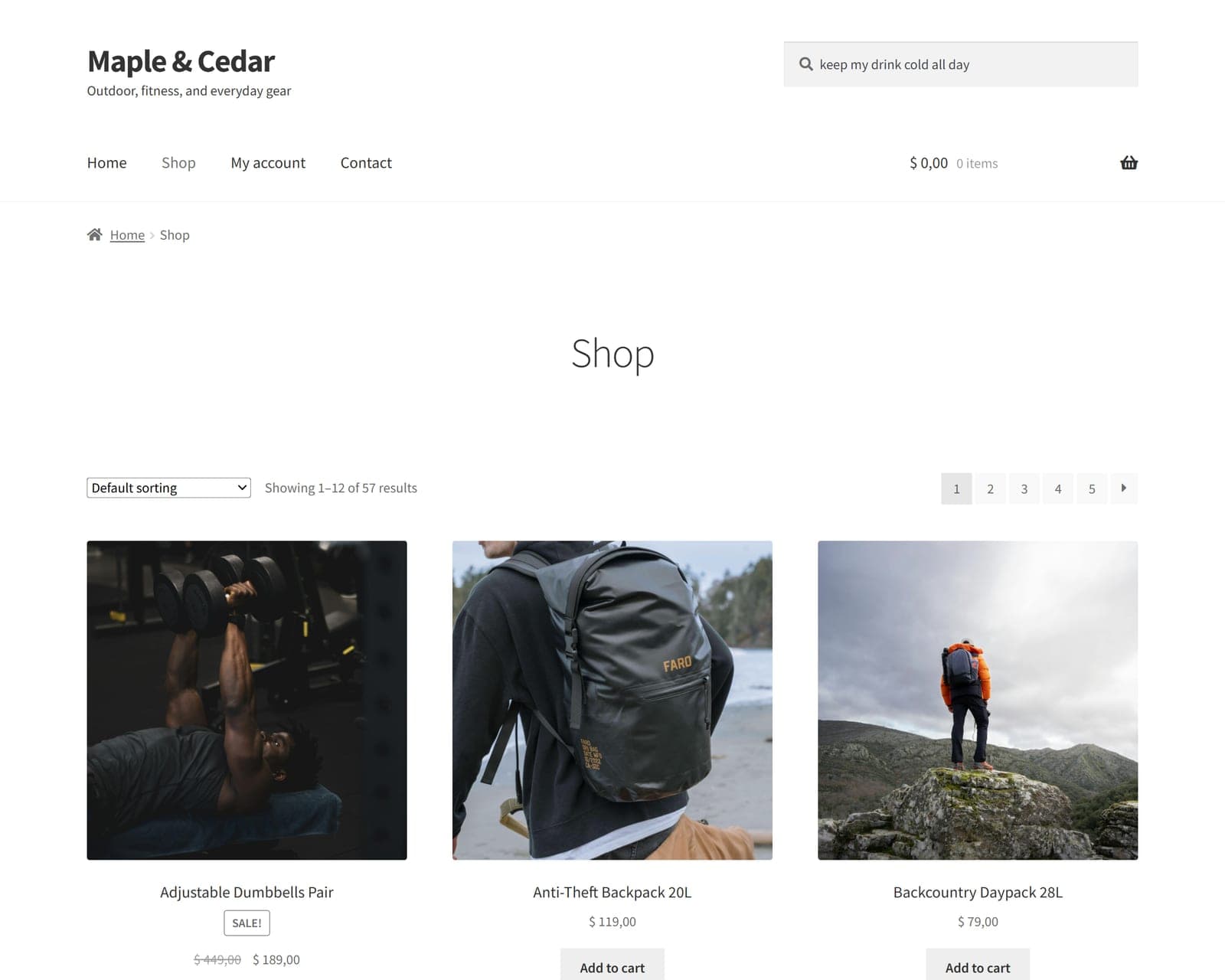
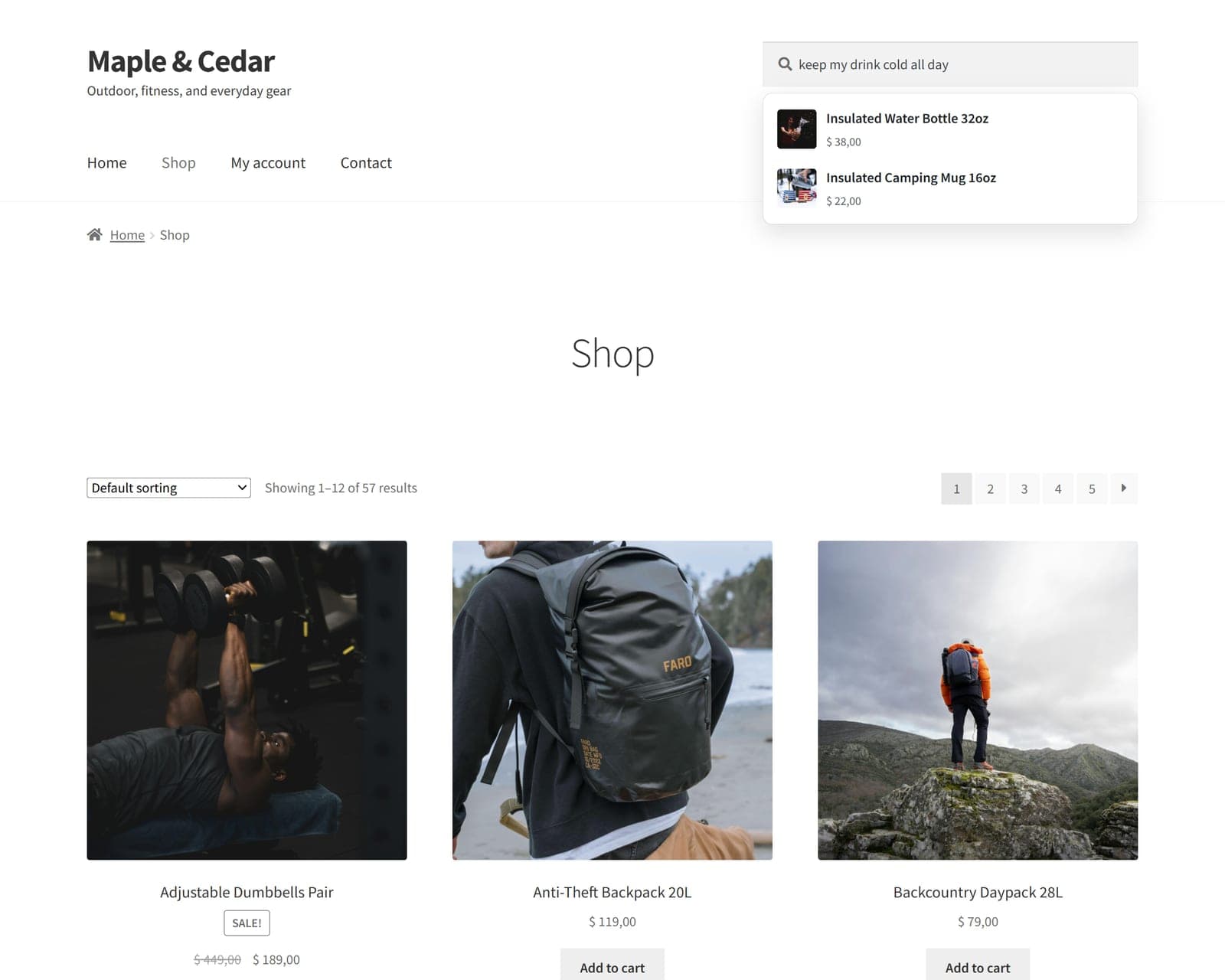
- Confirm you actually stock something relevant. Browse the category by hand. In both examples above, the store carries exactly what the shopper wanted — trail running sneakers and sportswear for “Nike,” insulated drinkware for “keep my drink cold all day.” The products exist; search just didn't connect them.
- Test a literal-word search. Search a single exact word from the product's title (for example “sneakers”). If that works but the shopper's phrasing doesn't, you've proven it's a wording mismatch, not missing inventory.
- Find out what shoppers actually type. This is the step most stores skip, because WooCommerce doesn't log searches out of the box. You need the list of real queries that returned nothing — those are your leaks.
FindAstra Pro records this for you on its Analytics tab and flags every zero-result query under Catalog gaps, with no IPs or personal data stored. Even if you never install it, this is the data you're after: the exact phrasing costing you sales.
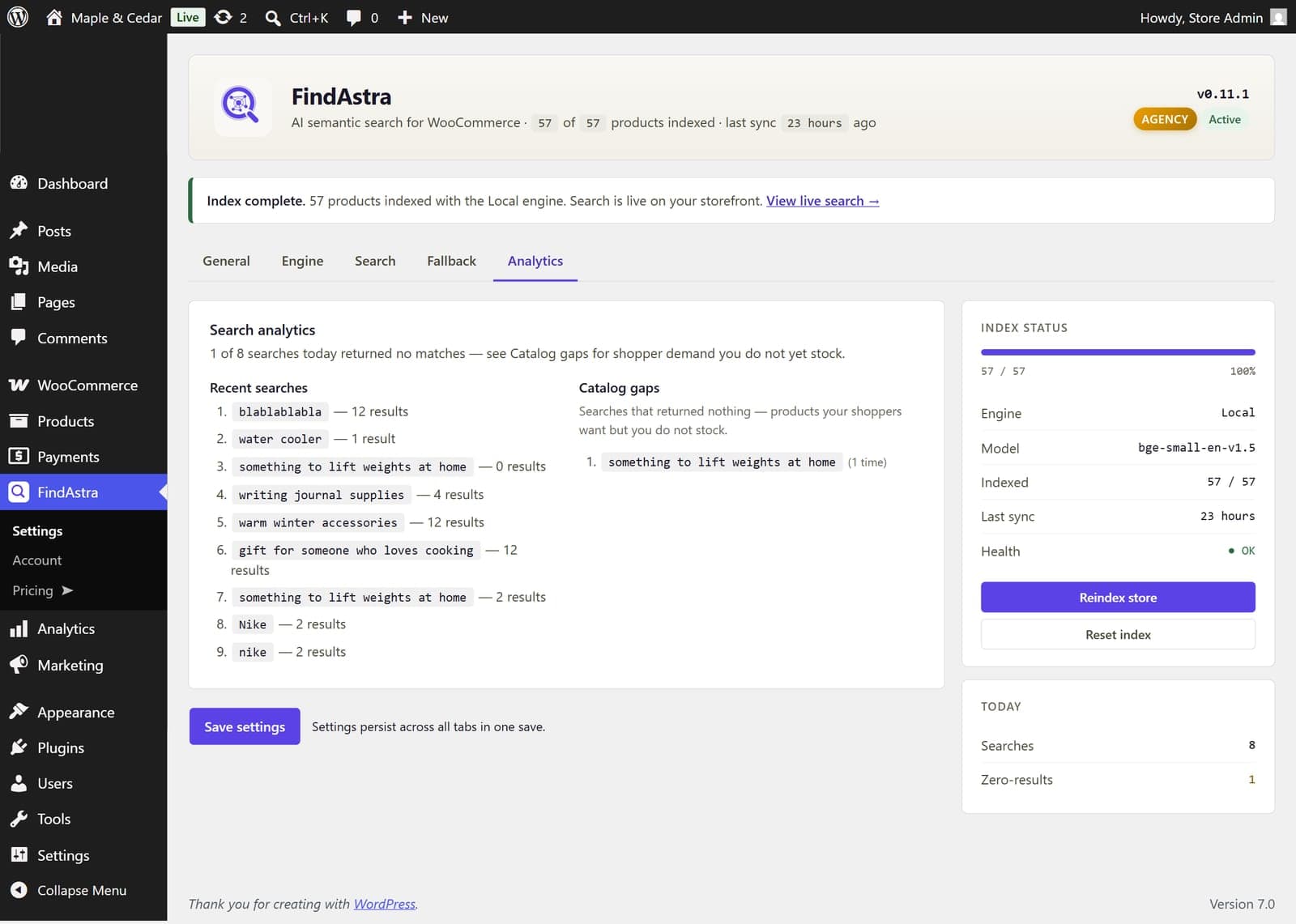
Catalog gaps: the searches that returned nothing. Here, “something to lift weights at home” came back empty — a shopper ready to buy who left with nothing.
Five ways to fix WooCommerce zero-result searches
From quickest patch to most durable. The first four reduce the problem; the last one is the one that makes it stop recurring.
- Fix the product data. Put the words shoppers use into titles, descriptions, and tags. If people search “hiking shoes,” the phrase should appear somewhere on the product. This is free and worth doing, but it doesn't scale — you can't list every phrasing a human might use, and keyword-stuffed titles read badly.
- Add a keyword search plugin with synonyms and fuzzy matching. A tool like FiboSearch adds typo tolerance and a synonyms list, so “couch” can match “sofa.” This genuinely helps, especially for typos. The catch is that you maintain the synonyms list by hand, forever, adding each new phrasing as you discover it. I compared that approach directly in FiboSearch vs FindAstra.
- Catch the empty page with a fallback. Instead of a dead end, show popular or featured products with a polite “no exact matches” message. This rescues the shopper but doesn't answer their actual question; it's a safety net, not a fix.
- Search more fields. Make sure search covers categories, tags, attributes, and SKUs, not just the title. More surface area means more chances for a keyword to land — though it's still keyword matching underneath.
- Switch to semantic search. This is the durable fix. Instead of matching words, semantic search matches meaning, so it handles phrasings you never anticipated without a synonyms list. It's the only option on this list that fixes queries you haven't seen yet.
The durable fix: search that matches meaning
Semantic search converts every product and every query into a vector — numbers that represent meaning — and ranks by similarity. “Nike” lands near your athletic footwear and sportswear even with no shared words and no synonym entry, because the model understands the intent. Same store, same query as the dead-end page above, with FindAstra handling the match:
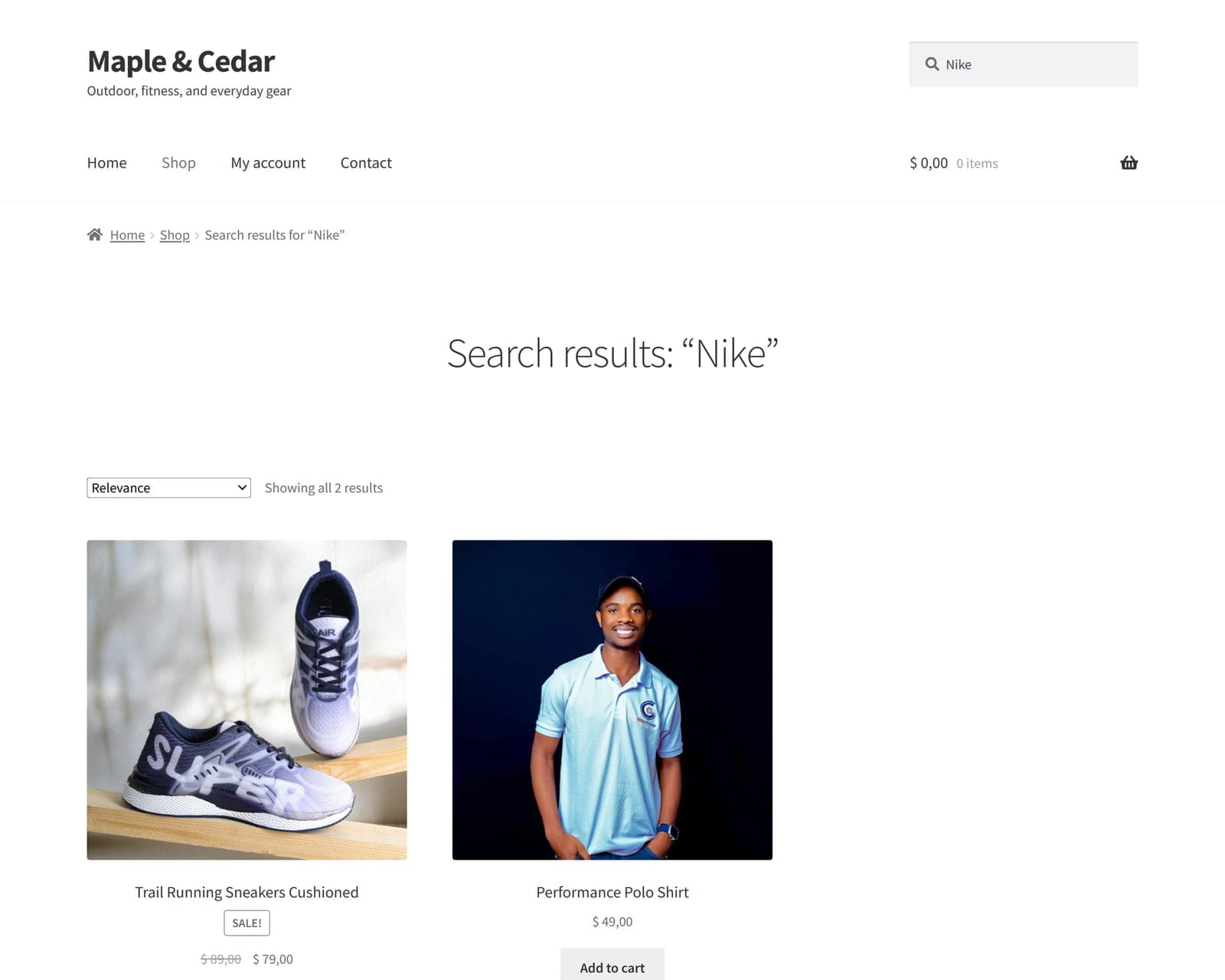
The same “Nike” search with FindAstra: the trail sneakers and the performance polo, ranked by relevance instead of an empty page.
A good semantic plugin also closes the loophole the other fixes leave open: what happens when nothing genuinely matches. FindAstra runs a fallback chain — admin-pinned products first, then featured, best-sellers, and most recent — so shoppers see a curated grid instead of a void. Empty results pages become impossible by design. There's a deeper walk-through of the mechanics in how AI semantic search works if you want it.
The practical worries are the ones I'd have too: speed and effort. FindAstra adds about 20–30 milliseconds to a search, indexes asynchronously so it never blocks your admin, and gets through a store under 5,000 products in under about two minutes. The default Local engine runs in the shopper's browser, so there's no API key and no recurring cost — $0 forever — and setup is roughly three minutes: install, pick the engine, click index. There's a free version on WordPress.org, so you can watch it work on your own catalog before spending anything. If the “no products found” page is costing you buyers, that's the smallest change with the biggest return.
Frequently asked questions
Because WooCommerce's default search is a literal keyword match against product titles and content. If none of the words a shopper typed appear in your product text — even when you stock exactly what they want — the query returns nothing. It's a wording mismatch, not a stock problem. Synonyms, plural/singular differences, descriptive phrases, and typos all trigger it.
WooCommerce doesn't log this out of the box. You can add a search-logging plugin, or use the Analytics tab in FindAstra Pro, which records every query and flags the ones that returned zero results under "Catalog gaps" — with no IPs or personal data stored. Those zero-result queries are the exact phrases you're losing shoppers on.
A well-built one won't noticeably. FindAstra adds roughly 20–30 milliseconds to a search and indexes asynchronously, so it never blocks the admin. Indexing a store under 5,000 products takes under about two minutes. The Local engine offloads the work to the shopper's browser entirely.
Shoppers who use site search are high-intent — they're telling you exactly what they want to buy. Baymard Institute's research found 61% of e-commerce sites can't handle the way people actually search (descriptive and feature-based queries), and a failed search often ends the visit. Turning a dead-end into a relevant result is one of the more direct conversion fixes available.
Semantic search. Synonyms and fuzzy matching patch individual cases after you find them; semantic search matches by meaning, so it handles phrasings you never anticipated. FindAstra converts products and queries into vectors and ranks by similarity, and falls back to curated picks when nothing clears the relevance bar — so shoppers never hit an empty page.