WooCommerce product search not working? 9 causes and how to fix each one
“Search not working” covers three different problems: nothing comes back, specific products are missing, or the results are wrong. All three trace back to nine causes. Work this checklist top to bottom and you'll find yours — and if you reach the last one, the search isn't broken. The matching model is.
The short answer. When WooCommerce product search “stops working,” it's almost always one of nine causes: the product isn't actually searchable (draft, hidden, out of stock), something is excluding it, the theme's search form isn't searching products at all, a cache is serving stale results, a search plugin's index is out of date, a plugin conflict is rewriting the query, variations don't match the way you expect, special characters break the match, or — the most common one — the search is working exactly as designed, and the design is literal keyword matching that fails real shoppers. This guide walks the checklist in that order.
First: which kind of “not working”?
Three different problems get reported with the same words. Knowing which one you have routes you to the right fix fast:
- Nothing ever comes back. Every search shows an empty page or “No products were found.” Start at causes 1–4, and read the companion piece on fixing “No products found” for the zero-results case specifically.
- Specific products are missing. Most searches work, but a product you know exists never shows. Causes 1, 2, 7, and 8 are your suspects.
- Results come back, but they're wrong. Irrelevant products rank first, or blog posts mix into product results. Causes 3, 6, and 9.
1. The product isn't searchable in the first place
WooCommerce will only return products that are published, visible, and (depending on your settings) in stock. Two minutes of checking saves an hour of debugging:
- The product is a draft, pending, or private. Only published products appear in search.
- It's password protected. Protected products are excluded from search results.
- It's out of stock and you've enabled “Hide out of stock items from the catalog” (WooCommerce → Settings → Products → Inventory).
2. Catalog visibility is set to exclude search
On every product edit screen, the Catalog visibility setting (in the Publish box) can be set to “Shop only” or “Hidden.” Both remove the product from search results while it stays perfectly visible elsewhere — which is why this one fools people. Set it back to “Shop and search results.” Bulk-edit can fix a whole category at once if an import set the flag wrong.
3. The search form isn't a product search
A theme's default search box usually performs a generic WordPress search across posts and pages. Unless the form includes post_type=product (or your setup forces it), shoppers get blog posts mixed into results or miss products entirely. Quick test: search from the URL bar with /?s=your+term&post_type=product. If that works and the search box doesn't, the form is the problem. Use your theme's “product search” widget/block variant if it ships one — WooCommerce includes a Product Search widget — or a search plugin that scopes to products. (FindAstra forces product scope on storefront searches automatically, so this entire class of bug disappears.)
4. A cache or CDN is serving stale results
Page caches generally skip search URLs, but aggressive CDN rules, object caches, or a misconfigured “cache everything” setting will happily freeze your search results page. Purge caches, retry in a private window, and if results change, exclude /?s= URLs from full-page caching.
5. A search plugin's index is stale
Every indexed search plugin — Relevanssi, SearchWP, FiboSearch, FindAstra, all of them — works from an index it built earlier. If products were imported or edited while indexing was broken (a killed cron, a migration, a staging-to-live push), the index no longer matches the catalog. The fix is the same everywhere: open the plugin's settings and run a full reindex. In FindAstra that's one click on Reindex store, and the status panel shows you exactly how many products are indexed versus published, so drift is visible instead of silent.
6. A plugin or theme conflict is rewriting the query
Anything can hook WordPress's pre_get_posts and change what a search returns: membership plugins hiding products, B2B catalogs, language plugins scoping to the wrong language, even another search plugin fighting for the same query. The reliable diagnostic is the built-in Health Check & Troubleshooting plugin: enable troubleshooting mode (it disables plugins for your session only, shoppers see nothing), then re-enable plugins one at a time until search breaks again. That's your culprit.
7. Variations don't match the way you expect
Out of the box, WooCommerce search matches against the parentproduct's title and description. A shopper searching a variation-only term — a color, a size, a variation SKU — often gets nothing, because that text lives on the variation, not the parent. Either repeat the important variation terms in the parent description, or use a search plugin that indexes variation data.
8. Special characters and encoded entities
Titles pasted from Word or a supplier feed sometimes carry curly quotes, non-breaking spaces, or HTML entities (& in the database where a shopper types &). The text looks identical and doesn't match. If one specific product refuses to match a term you can see in its title, edit the title, retype the suspect word by hand, and save.
9. The search works as designed, and that's the problem
If you've cleared causes 1–8, what's left is the big one: WooCommerce's search is a literal database LIKE match against product text. It has no idea that “trainers” are “sneakers,” that “something to keep coffee hot” is a travel mug, or that “waterproof jacket for hiking” should rank your rain shell first. It isn't broken. It just matches characters, while your shoppers are describing intent.
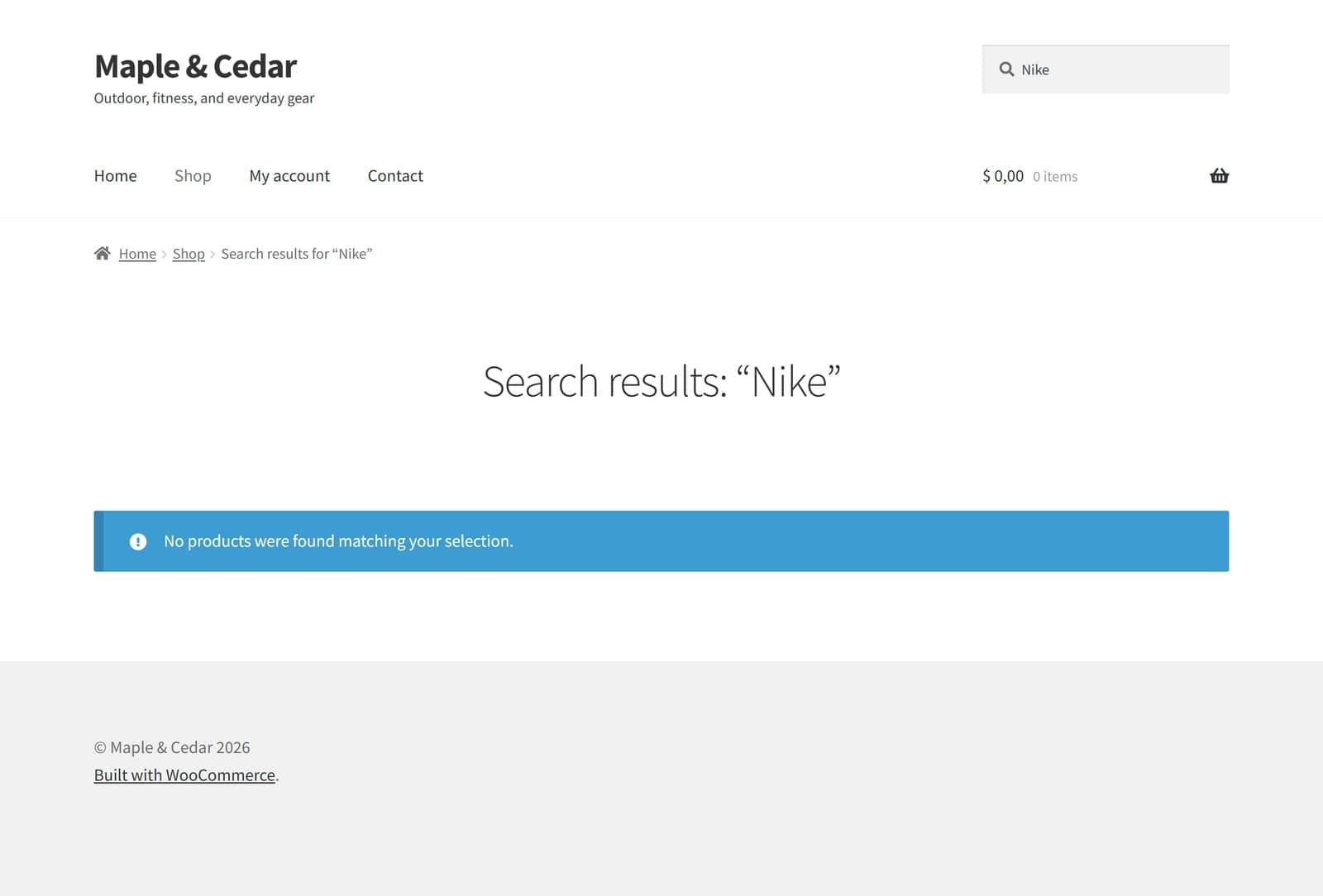
Causes 1–8 ruled out, product in stock, search “working” — and the shopper still hits a dead end, because the wording didn't match.
That gap is what semantic search closes: it matches by meaning instead of by characters, so the phrasings you never anticipated still land on the right products. If your “search not working” reports keep coming from real shoppers using their own words, that's the durable fix — the semantic vs keyword explainer covers how it works, and the five-minute tutorial shows the setup. The free version of FindAstra on WordPress.org does this with no API keys and no product cap, so you can test it on your own store for nothing.
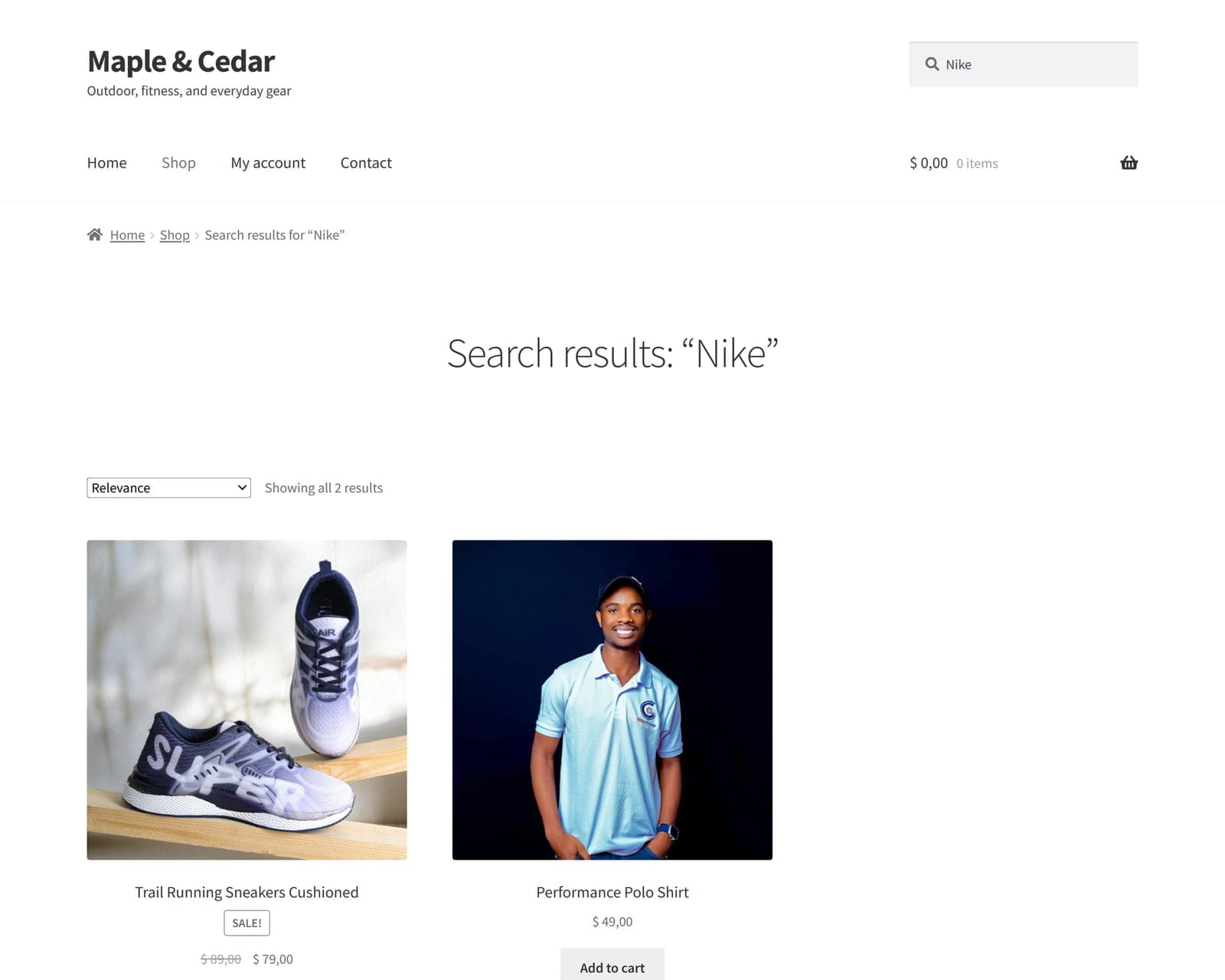
The same store, the same query, with meaning-based matching. Nothing else about the theme or catalog changed.
The five-minute diagnostic, in order
- Search a single exact word from a known product's title. Works? The engine is fine; it's a wording problem (cause 9).
- Returns nothing at all? Check that product's status, stock, and catalog visibility (causes 1–2).
- Try
/?s=term&post_type=productin the URL bar (cause 3). - Private window + purged cache (cause 4).
- Using a search plugin? Full reindex (cause 5).
- Still broken? Troubleshooting mode, re-enable plugins one by one (cause 6).
- One stubborn product? Variations and retyped titles (causes 7–8).
Work the list top to bottom and you'll find it. And if you end the checklist at cause 9, that's not a failure — it's the signal that your store has outgrown literal keyword matching.
Frequently asked questions
Two usual reasons. First, many theme search forms run a generic WordPress search across posts and pages instead of a product-scoped one, so non-products leak in. Second, WooCommerce's matcher is a literal keyword LIKE query with no real relevance ranking, so any product containing the words ranks as well as the best match. Scope the form to products (post_type=product), then add a search plugin with actual ranking — semantic ranking if your shoppers search descriptively.
Default WordPress search looks at the parent product's title, content, and excerpt. SKUs are stored as product meta, and variation SKUs live on the variation rather than the parent, so neither matches out of the box. Use a search plugin that indexes SKUs and variation data, or repeat critical codes in the parent description.
Add post_type=product to the search form (or test with /?s=term&post_type=product in the URL bar), use WooCommerce's Product Search widget or your theme's product-search block variant, or install a search plugin that forces product scope on storefront searches automatically — FindAstra does this by default.
Only when the symptom is stale or frozen results, which means a full-page cache or CDN rule is caching search URLs. Purge, retest in a private window, and exclude /?s= URLs from page caching. If results were wrong rather than stale, the cause is elsewhere — usually the form scope, an out-of-date search index, or a plugin conflict.
Then the search is working exactly as built: a literal character match. It will keep failing every shopper who describes what they want instead of naming it. The durable fix is semantic search, which matches by meaning. FindAstra's free version on WordPress.org adds it in about three minutes with no API keys, so you can verify the fix on your own catalog before spending anything.