How AI semantic search actually works on WooCommerce.
A plain-English explainer for store owners who want to know what changes when you replace default WordPress search with FindAstra. No vendor speak. No buzzwords without definitions. Just what the math does and how it shows up in your storefront.
The problem with WooCommerce's default search
WooCommerce ships with WordPress's built-in search, which is a SQL LIKE query against product titles and content. It only matches exact words. If a shopper types "comfortable hiking shoes" and your catalog has "Trail Running Sneakers Cushioned", default search returns nothing — not because you don't sell what they want, but because the words don't line up.
That zero-result page is a conversion killer. Baymard Institute's e-commerce research puts the rate at which shoppers abandon a session after a failed search at around 30%. Every dead-end search bar is a lost sale.
FindAstra replaces that LIKE query with semantic search: matching by meaning instead of by characters. Here's what that looks like on a real storefront.
The same query. The same shopper. Two different outcomes.
Real screenshots from a live WooCommerce store. Toggle to flip between FindAstra active and default WC search.
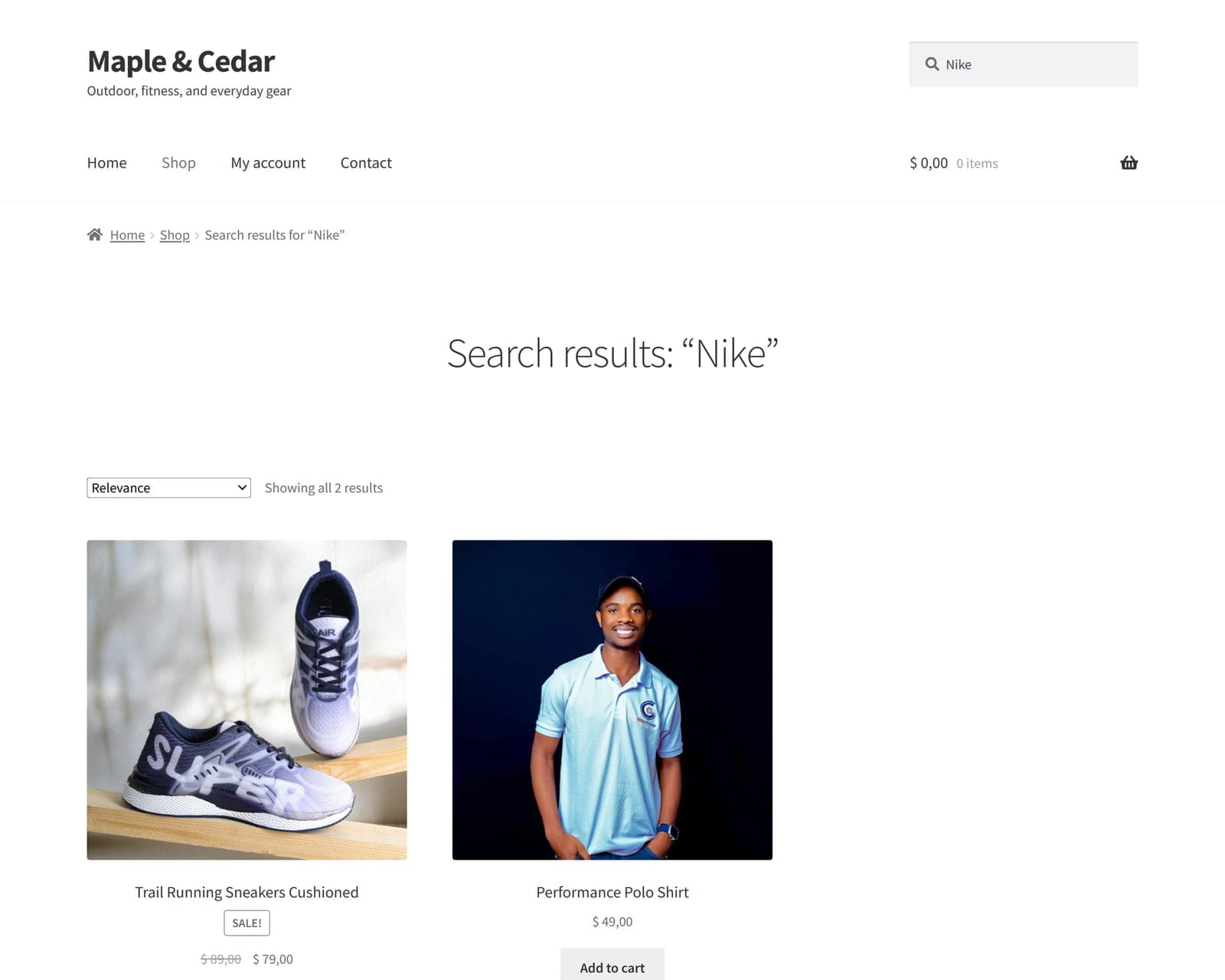
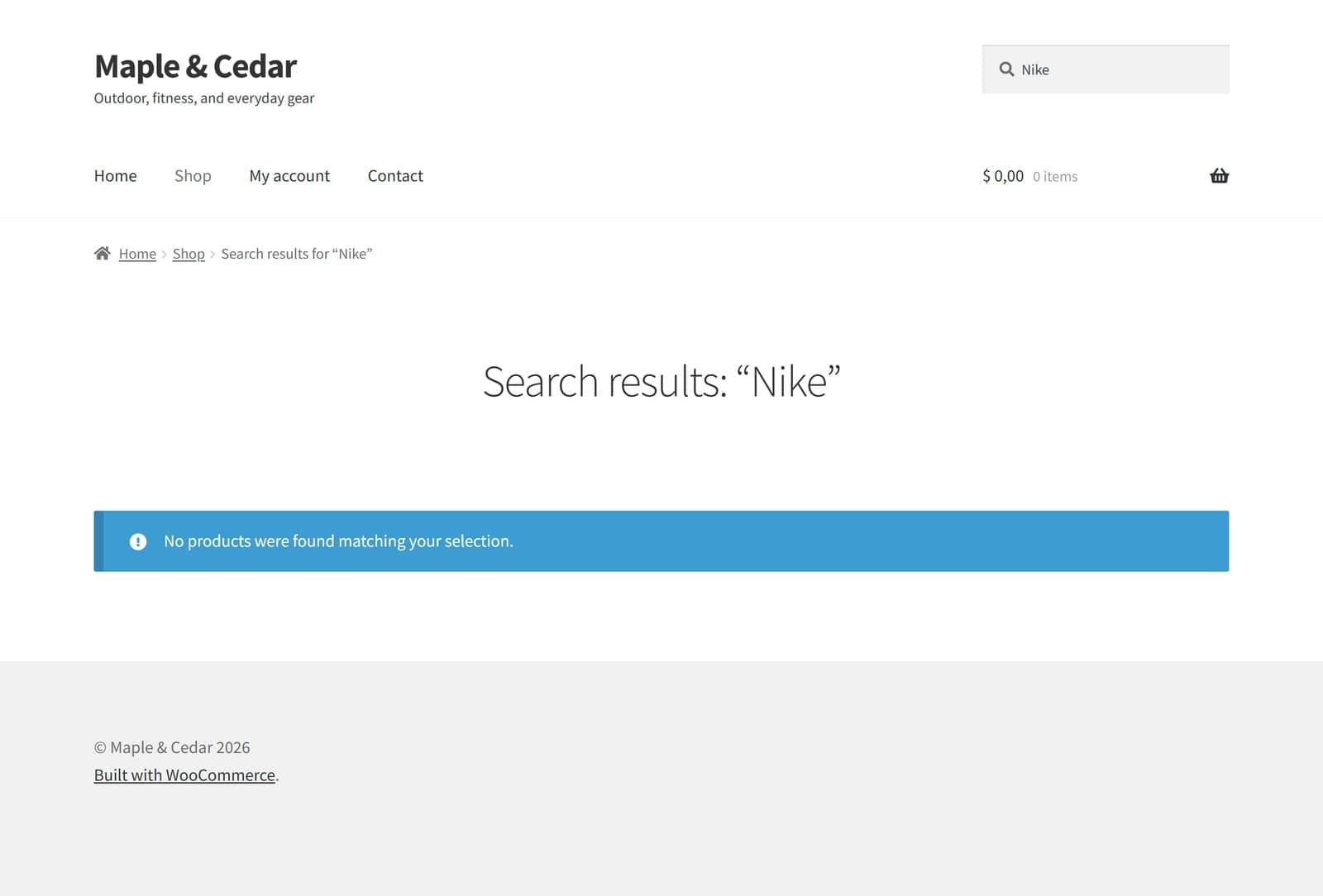
These are real screenshots from a WooCommerce + Storefront install — not mockups. The query "nike" against a catalog that doesn't sell Nike-branded products returns a literal zero on default WC, two semantically-related products on FindAstra.
The three things you need to know about embeddings
Semantic search is built on embeddings — a way to turn words into numbers. Three things to know:
1. Every product becomes a 384-number fingerprint
When FindAstra indexes your store, every product (title + categories + description + ACF fields) goes through an embedding model — a small neural network trained to read English. The model outputs a list of 384 numbers between -1 and 1. That list is the product's "fingerprint" in meaning-space. Products that mean similar things end up with similar fingerprints.
For example, "Trail Running Sneakers Cushioned", "Mountain Trek Boots Waterproof", and "Hiking Daypack 28L" all sit close together in this 384-dimensional space — the model learned at training time that they relate to outdoor activity. They don't share many words, but they share meaning.
2. The shopper's query gets its own fingerprint
When a shopper types "comfortable hiking shoes", that phrase goes through the same model and becomes its own 384-number fingerprint. The shopper's intent is now in the same meaning-space as your products.
3. The closest fingerprints win
FindAstra compares the shopper's query fingerprint to every product fingerprint using cosine similarity — a standard mathematical operation that measures how aligned two vectors are. The top-K closest matches become the search results, ranked by closeness.
That's the whole trick. No magic. No external service required for the default engine. The full match runs in pure PHP (or in the shopper's browser on the free tier) and adds 20–30ms to a query.
Three engines, one plugin
FindAstra lets you pick which embedding model powers the search. All three share the same storage and ranking code — switching engines just means re-indexing.
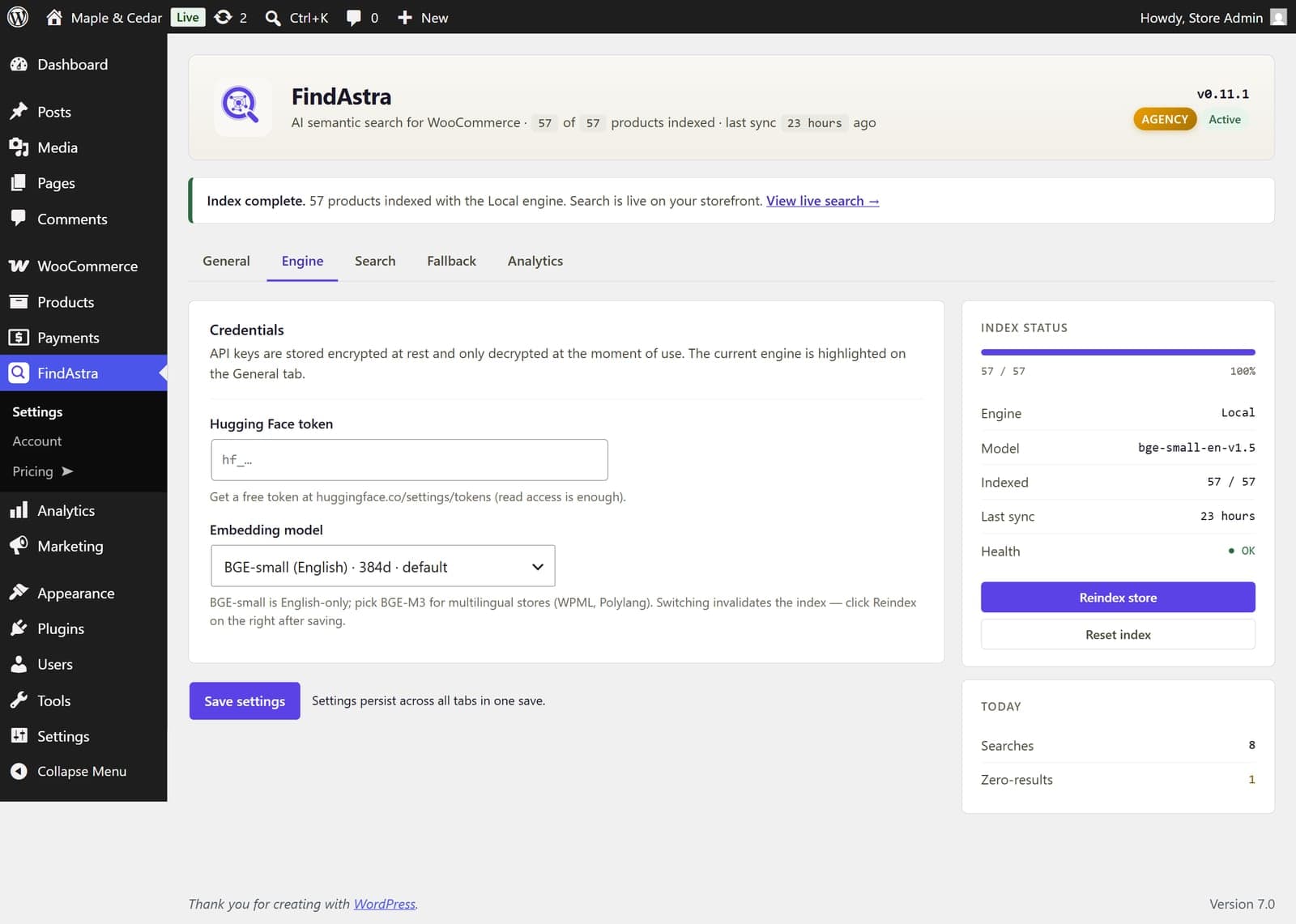
The Engine picker in the FindAstra admin. Pick a tier, save, re-index.
Tier 3 — Local (free, default)
The default engine runs the model entirely in the shopper's browser using @huggingface/transformers (transformers.js) and the quantized Xenova/bge-small-en-v1.5 model. The model is ~33 MB and gets cached after the first visit. $0 forever. No keys, no accounts, no recurring cost. This is the same model class many commercial vector databases use under the hood — you just get it without paying.
Tier 2 — Hugging Face (paid plans, BYOK free tier)
Server-side embedding via Hugging Face's Inference API. Default model is BAAI/bge-small-en-v1.5 (the same family as Tier 3 but without the browser-side overhead). For multilingual stores, the admin can switch to BAAI/bge-m3, which handles 100+ languages. The free tier covers about 30,000 queries per month — plenty for most stores.
Tier 1 — OpenAI (paid plans, BYOK)
Server-side embedding via OpenAI's text-embedding-3-small model at 384 dimensions. Best overall quality. Costs the store owner about $2/year — OpenAI charges fractions of a cent per query, and embedding-only usage is cheap.
What happens when nobody matches
Sometimes a query genuinely doesn't match anything in your catalog — new shopper, niche request, typo. Default WC shows them an empty results page; FindAstra doesn't.
Every search runs through a fallback chain: admin-curated pinned products first (set in FindAstra → Fallback), then WooCommerce Featured products, then best-sellers by total sales, then most recent. The shopper sees a polite "No exact matches — here are some popular products" notice and a grid of products you actually want to push. Empty results pages become impossible.
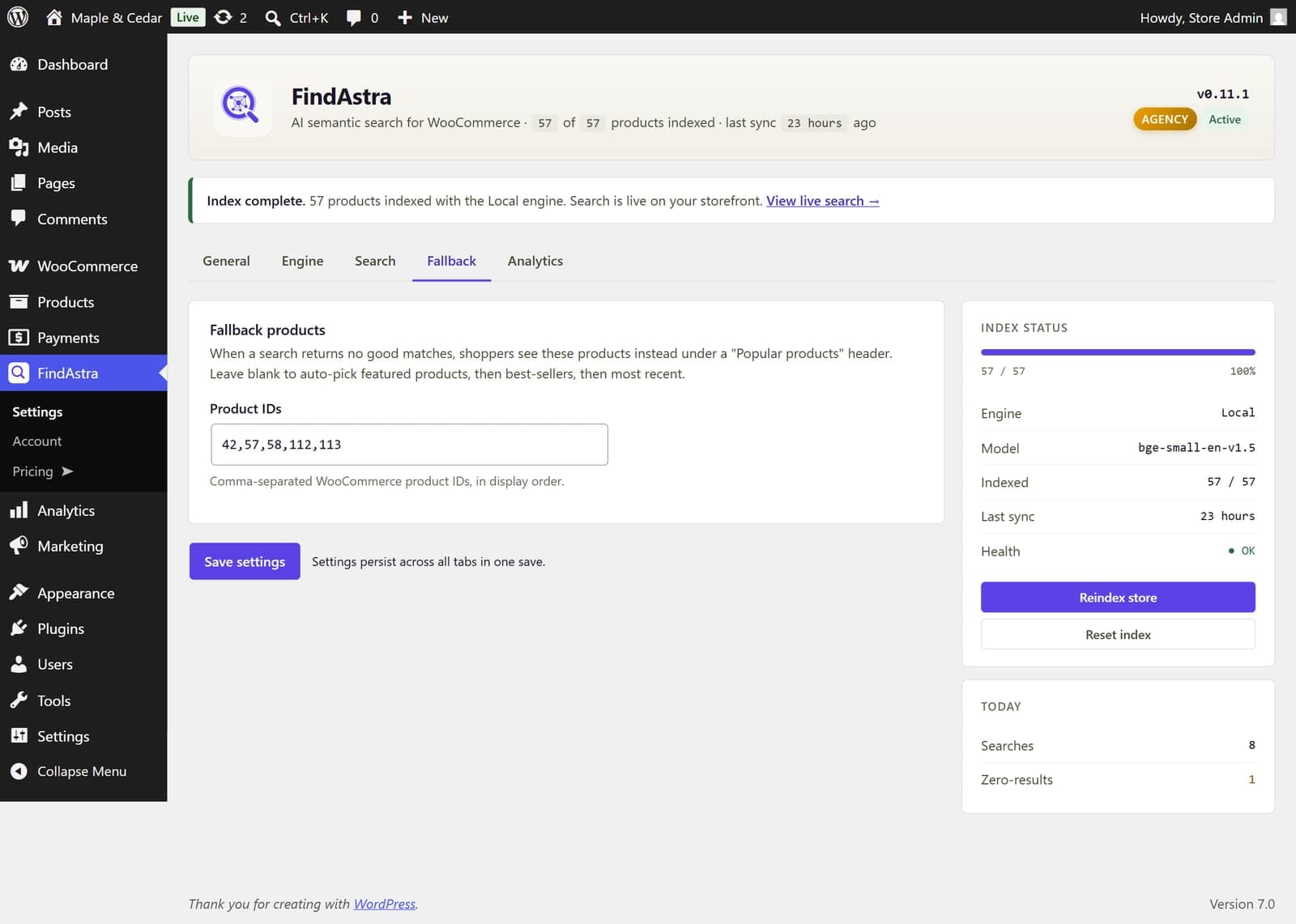
The Fallback tab. Pin specific product IDs first; the rest of the chain handles itself.
What about huge catalogs?
On stores with 5,000+ indexed products, comparing the query to every product on every search becomes wasteful — even at 30ms per match, you don't want O(n) on every keystroke. FindAstra automatically switches to a hybrid retrieval path:
- MySQL
FULLTEXTindex onwp_posts.post_title + post_contentnarrows candidates to the top 200 by keyword relevance. - FindAstra re-ranks those 200 by semantic similarity.
- The top hits are returned.
Same end result, ~10x faster on big catalogs. The threshold is configurable via the findastra_hybrid_threshold filter for store owners who want to tune it.
The shopper's experience, step by step
Here's what FindAstra actually does on a live storefront:
- Shopper types in the theme's search bar. Could be the header, sidebar, or a Gutenberg search block — FindAstra auto-attaches to all standard WC theme search inputs.
- Live autocomplete dropdown. 180ms after each keystroke, FindAstra queries both a SQL prefix index (for partial matches like "adjustabl") and the semantic engine. The dropdown shows product thumbnails, names, and prices.
- Shopper hits Enter or clicks a result. They either go straight to a product page or to the search results page (the WC product archive), already ranked by semantic relevance.
- Every search gets logged. The admin sees zero-result queries as catalog gaps — products shoppers want that you don't stock. PII-free (no IP, no user agent).
Setup takes three minutes
- Install and activate the plugin like any other WordPress plugin.
- Open FindAstra → Settings in wp-admin. Pick an engine (Local works without any key).
- Click Index now on the right. Wait for it to finish.
Open your storefront, type a search. The autocomplete dropdown and the results page are both wired automatically — no theme edits, no template overrides.
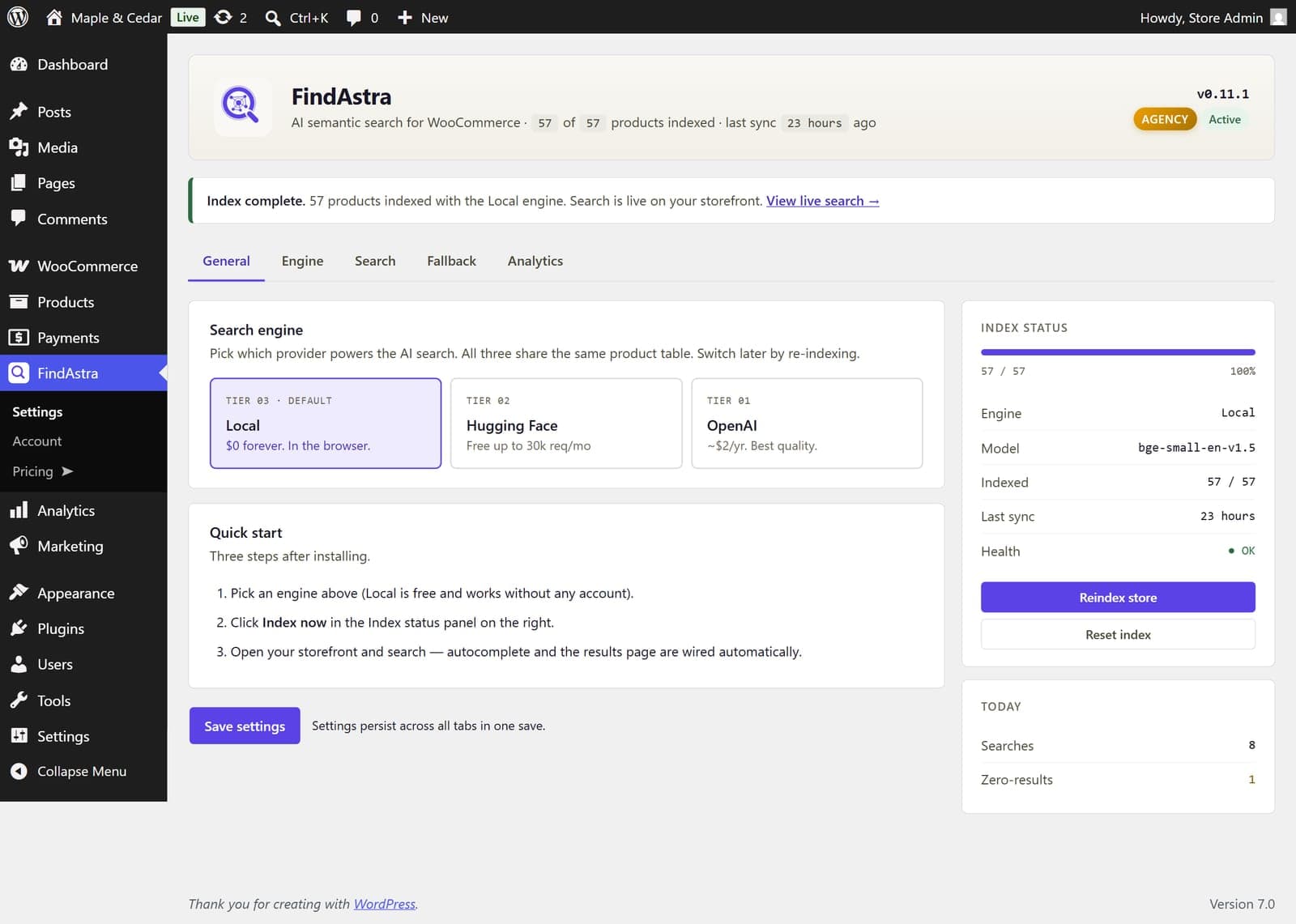
The General tab. Pick, save, index — that's the whole setup.
Frequently asked questions
For a longer FAQ covering pricing, refunds, and developer hooks, see the homepage FAQ. Below are the questions specific to how the search engine works.