How to add AI semantic search to WooCommerce in under 5 minutes
Adding AI semantic search to WooCommerce doesn't take a developer or a migration. With FindAstra it's four steps and about three minutes: install, pick an engine, index, done. The default engine runs in the shopper's browser, so there's no API key and no recurring bill. Here's the whole thing, screenshot by screenshot.
The short answer. You can add AI semantic search to WooCommerce in about three minutes with FindAstra, in four steps: install the plugin, pick a search engine (the default Local engine needs no API key and costs $0), click Index now, then search your storefront to confirm it's live. There are no theme edits — the dropdown and the results page wire up automatically. You'll need WooCommerce 7.0 or newer.
I'll keep this practical. Below is the exact path I'd take on a store I hadn't touched before, with the real admin screens. If you've installed a WordPress plugin before, none of this will surprise you.
What you need before you start
- WooCommerce 7.0 or newer on a single-site WordPress install.
- A catalog with published products. Anything indexable counts; you don't need to prep your data.
- Nothing else. No API key, no account, no credit card for the default engine.
That last point is the one people don't expect. The default engine runs the AI model in the shopper's browser, so there's nothing to sign up for.
How to add semantic search to WooCommerce, step by step
1. Install and activate FindAstra
In wp-admin, go to Plugins → Add New and search for FindAstra, or upload the Pro zip. Click Install, then Activate — the same as any WordPress plugin. There's also a free version on WordPress.org if you want to start there.
2. Pick a search engine
Open FindAstra → Settings. On the General tab you'll see the engine picker. Leave it on Local unless you have a reason not to — it's the default, runs in the browser, and costs nothing. Click Save settings.
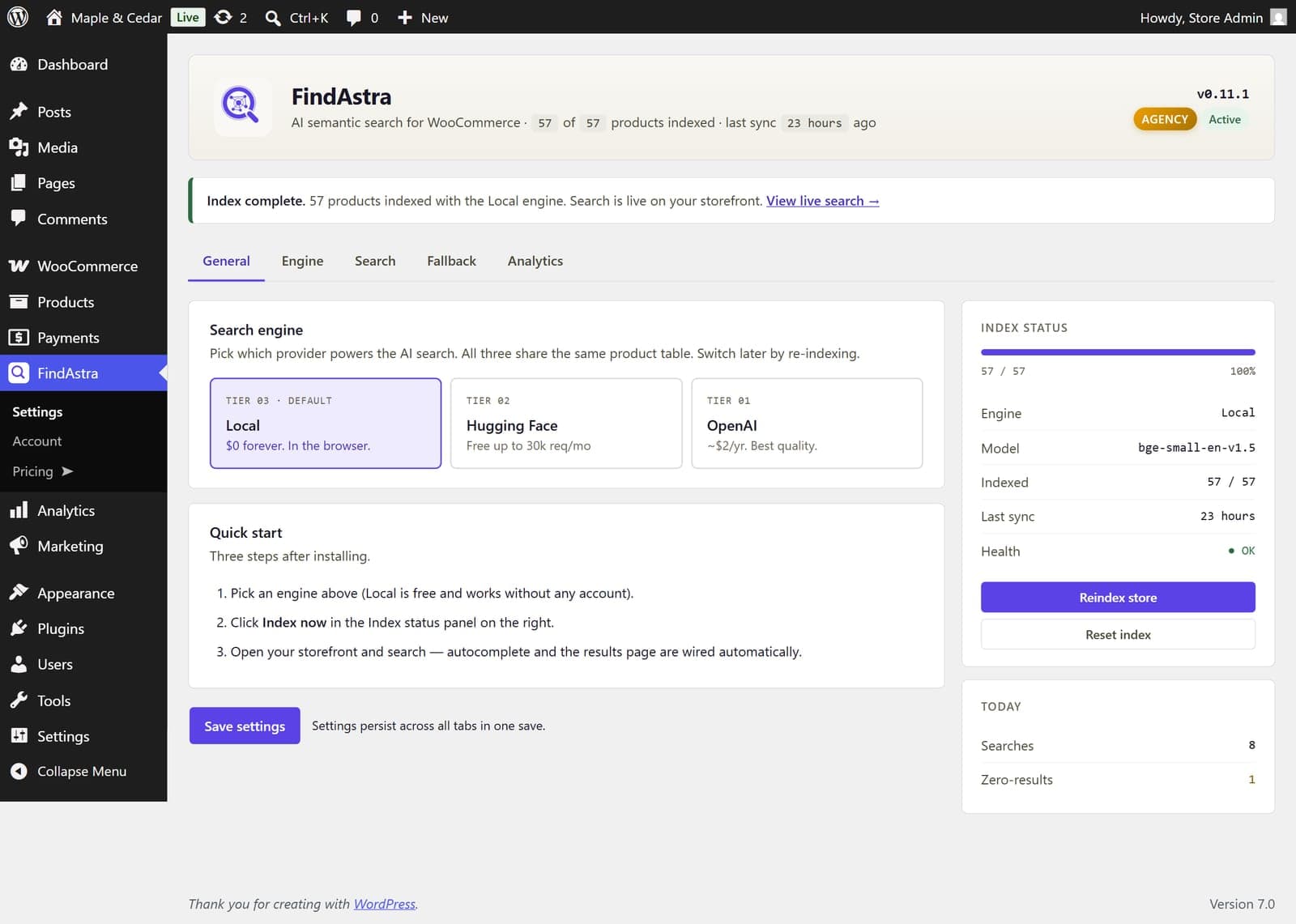
The General tab: pick an engine (Local is selected here), then use the Index status panel on the right. The quick-start box spells out the same three steps.
3. Index your products
In the Index status panel on the right, click Index now. FindAstra builds an embedding for every product and stores it. Indexing is chunked and asynchronous, so it won't freeze your admin, and a store under 5,000 products finishes in under about two minutes. When it's done you'll see an “Index complete” notice and the progress bar at 100%.
4. Confirm it's live on your storefront
Open your store and run a deliberately descriptive search — the kind that would normally return nothing. You should get a live autocomplete dropdown and a results page ranked by relevance. Here's a search for “Nike” on a store that carries no Nike products, returning the closest things it does sell:
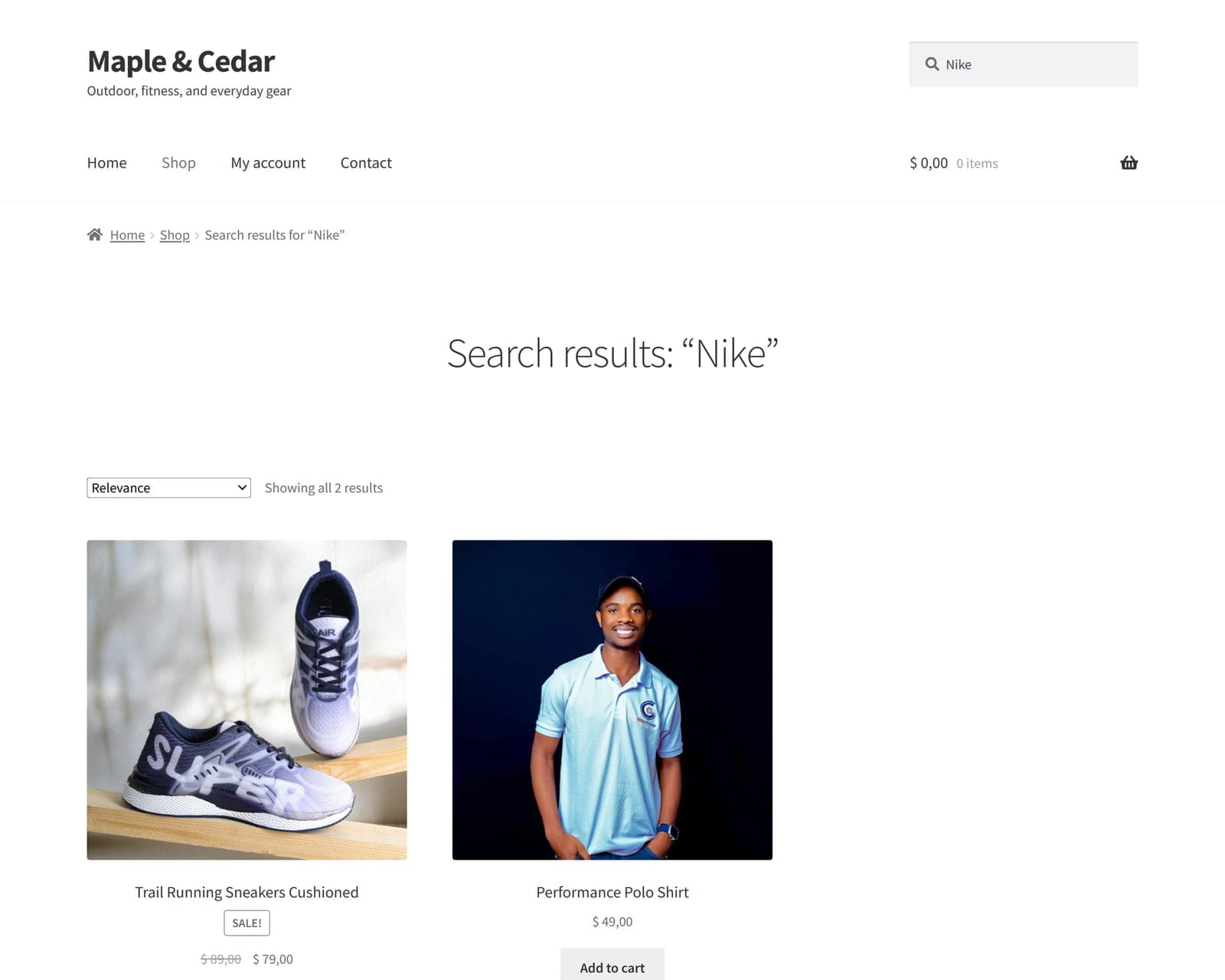
Live on the storefront: a meaning-based result set for a query that default WooCommerce returns nothing for.
That's the whole install. Four steps, and the only one that takes any real time is the indexing, which runs on its own.
Which engine should you pick?
All three produce semantic results; they differ in where the work runs and what it costs.
- Local (default). Runs in the shopper's browser. $0 forever, no key, no account. Start here.
- Hugging Face. Server-side embeddings on a free tier of roughly 30,000 requests a month. Good if you'd rather not run the model client-side.
- OpenAI. Best overall quality, about $2 a year for an average store. The API key is stored encrypted.
You can switch engines later from the same screen — it just means re-indexing. If you're weighing the trade-offs, the semantic vs keyword guide covers how the matching itself works.
Do I need to edit my theme?
No. FindAstra auto-attaches to your theme's existing search box and to the WooCommerce search results page, so the dropdown and the new ranking show up without any template changes. Both behaviors are toggles on the Search tab if you ever want to turn one off, and it's tested against Storefront, Astra, Kadence, Blocksy, GeneratePress, and other popular themes.
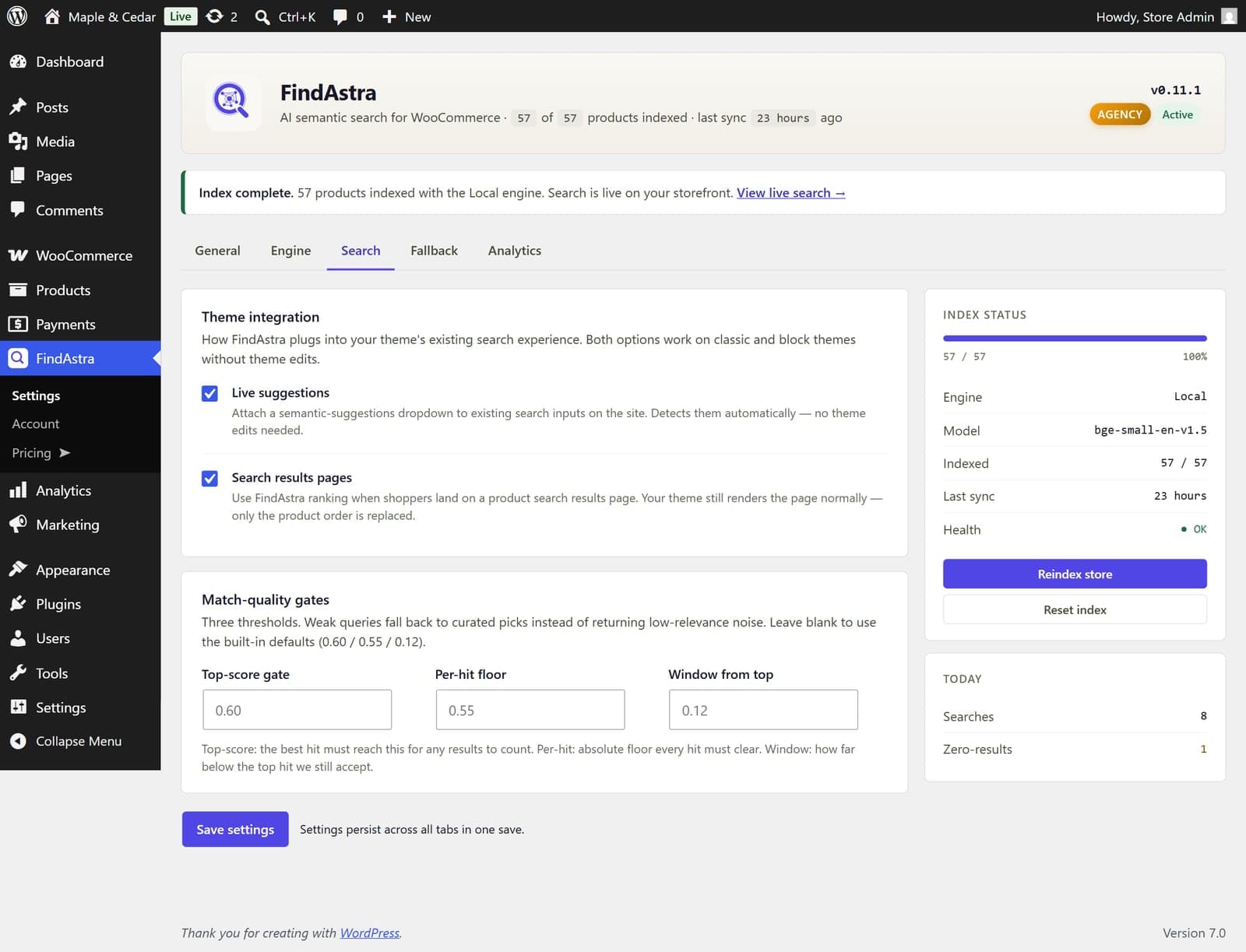
The Search tab. Theme integration is on by default; the match-quality gates let you tune how strict results are.
What if the results don't change?
Three quick checks cover almost every “it's not working” case:
- Make sure indexing finished. The Index status panel should read 100% with a green Health: OK. If you added products after indexing, click Reindex store so the new ones get embeddings.
- Confirm the results-page toggle is on. On the Search tab, “Search results pages” replaces the product order on the WooCommerce results page, while “Live suggestions” controls the dropdown. If only the dropdown changed, that second toggle is off.
- Test in a private window. A caching or CDN layer can keep serving the old results page. Clear the cache and retry while logged out.
If the dropdown doesn't appear at all, your theme may render a non-standard search field. Live suggestions detect standard WooCommerce and block-theme search inputs on their own; the rare manual case is covered in the docs. And if a query genuinely has no good match, FindAstra shows a curated fallback grid instead of an empty page, so shoppers never dead-end.
How do I know it's actually helping?
On FindAstra Pro, watch the Analytics tab. It logs every search and flags the ones that returned nothing under Catalog gaps — real shopper demand you can act on, with no IPs or personal data stored. Over a week or two it tells you whether shoppers are finding things, and what they want that you don't stock.
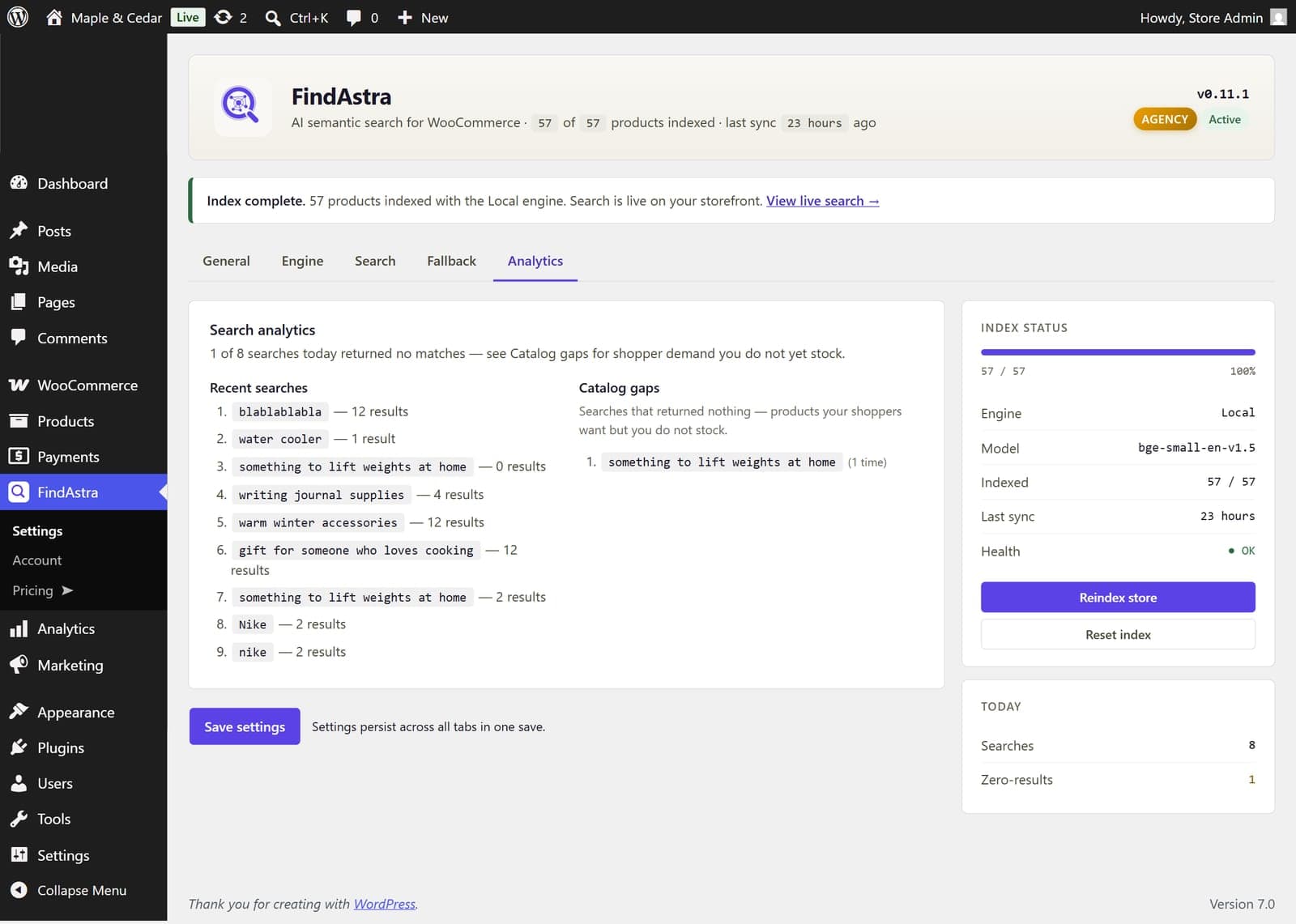
The Analytics tab (Pro) turns search into a feedback loop: what shoppers ask for, and what comes back empty.
That's it. If you're coming at this because your store keeps showing empty results, the companion piece on fixing “No products found” walks through diagnosing the cause first. And the pricing page has the one-time tiers if you outgrow the free version.
Frequently asked questions
About three minutes of setup across four steps: install, pick an engine, index, confirm. The indexing step runs on its own — a store under 5,000 products finishes in under about two minutes, and it runs asynchronously so it never blocks your admin.
No. FindAstra's default Local engine runs the model in the shopper's browser with no API key and no account, at $0 forever. There's also a free version on WordPress.org. You only need a key if you opt into one of FindAstra Pro's server-side engines later (Hugging Face's free tier, or OpenAI).
No. FindAstra auto-attaches to your theme's existing search box and the WooCommerce search results page, so the dropdown and ranking appear without template changes. It's tested on Storefront, Astra, Kadence, Blocksy, GeneratePress, and other popular themes.
WooCommerce 7.0 or newer on a single-site WordPress install. FindAstra hooks into the standard WooCommerce search query, so it works wherever your theme renders search.
Click Reindex store on the settings screen after a large catalog change to rebuild embeddings. For routine edits you can reindex any time from the Index status panel; indexing is chunked and runs in the background.